
YouTube Publishing
Why Your YouTube Thumbnail Looks Blurry After Upload
A blurry YouTube thumbnail can start with a soft source, enlargement of a small image, repeated lossy saves or text that is too fine at card size. First compare your local export at 100% and at a realistic small display size. Meeting dimensions alone cannot restore missing detail, and a preview cannot predict click-through rate.
By Tubelexity / Updated
Compare thumbnail readability at feed sizesUse current guidance, not an old fixed-size rule
YouTube's guidance checked on October 23, 2026 recommends 3840 by 2160 for video thumbnails, a minimum width of 640, and a 16:9 composition. It lists JPG and PNG and distinguishes a 2 MB mobile video-thumbnail limit from a 50 MB desktop limit. These are not the same as pixel dimensions.
The toolkit's 1280 by 720 preset remains a usable working canvas, not the current official recommended resolution. Start with sufficient original detail rather than blindly enlarging that preset. The size checker offers a fixed 1280 by 720 correction; use Image Resizer or the toolkit's custom dimensions for another canvas. WebP export is useful elsewhere; use JPEG or PNG for the documented YouTube upload workflow.
Compare three controlled local exports
We generated one 640 by 360 graphic containing large lettering, smaller text, fine stripes and a colored circle. Tubelexity's real Canvas image helper produced the variants below: an unchanged PNG reference; a reduction to 80 by 45 followed by enlargement back to 640 by 360; and a JPEG export at quality 0.1.
All final files have identical dimensions. The enlarged image cannot recover the stripes and letter edges discarded at 80 by 45. The aggressively compressed JPEG exhibits a different failure mode around sharp transitions. The same dimensions can therefore describe very different visible detail.
These are controlled browser examples, not images fetched from YouTube and not measurements of YouTube's compression. Exact encoded bytes can differ across browser versions. The small test canvas makes damage visible without downloading large images; it is not the recommended upload canvas.
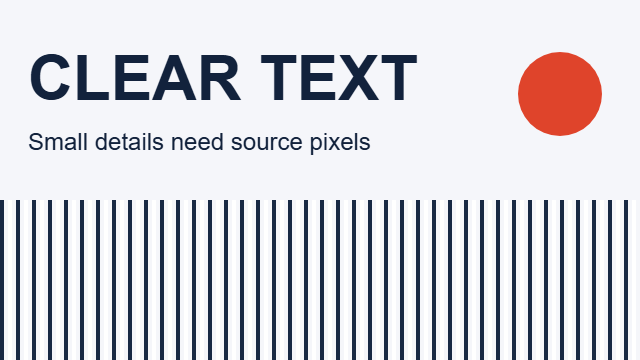


| Variant | Final dimensions | Encoded bytes |
|---|---|---|
| Original PNG | 640 x 360 | 21,136 |
| Downsampled then enlarged PNG | 640 x 360 | 86,080 |
| JPEG quality 0.1 | 640 x 360 | 9,356 |
Diagnose softness before adding sharpening
Inspect at one image pixel per screen pixel first. If the local file already has fuzzy text, start upstream: the source may be a low-resolution screenshot, the text may have been rasterized small, or several exports may have accumulated damage. Reopen the source project and export once at the intended size.
If the local file is sharp but the small preview is hard to read, the composition may be too dense. A 48-pixel-high label on a 3840-pixel-wide canvas becomes only 4 pixels high when shown 320 pixels wide. That arithmetic is a reason to simplify the design, not to keep increasing the output resolution.
Sharpening cannot reconstruct original letters or texture after they have been discarded. It may emphasize edges and introduce halos. Compare a simple high-contrast title and a larger subject before applying stronger processing.
Choose compression for the artwork
JPEG is often efficient for photographs, but strong lossy compression can create blocks and ringing around text. PNG preserves raster pixels without JPEG-style quantization and is useful for flat graphics, although photographs can be much larger. Neither format makes an already blurred source sharp.
When a file is too large, compare several exports from the same original. A smaller byte count is not automatically better: our enlarged PNG is larger than the clear reference while carrying less useful detail. Keep the sharpest practical file within the limit for the device you actually use to upload.
Separate the mockup from the published thumbnail
Tubelexity's preview shows approximate card layouts, not every live YouTube interface or display density. Compare the downloaded export with the actual published thumbnail on a desktop and a phone. A newly changed image may not appear immediately; confirm which file and video you edited before exporting it repeatedly.
Platform display size, selected image variant and browser zoom can change what you see. A local comparison can rule out an already damaged export but cannot identify every platform transformation. The tool does not measure audience response, predict CTR, or guarantee that a clearer image will rank better.
Recommended workflow
- Open the original image rather than a screenshot of an existing small thumbnail.
- Check its pixel dimensions and 16:9 composition. Keep the subject and text clear of the edges.
- Export once from that source to JPEG or PNG, then inspect the downloaded file at 100% for blur, blocks and halos.
- Use Thumbnail Preview to compare the same design at desktop and mobile card sizes. Simplify text if it is unreadable.
- Upload the intended file, allow the platform preview to update, and compare the actual result. Do not infer CTR or ranking from the mockup.
Frequently asked questions
Why is a large thumbnail still blurry?
Dimensions count pixels, not original detail. Enlarging a small or blurred source creates a larger file without restoring the information that was lost.
Is PNG always better than JPEG?
No. PNG avoids lossy JPEG artifacts but can be much larger. Compare the actual artwork; a good JPEG can be practical for photographs.
Should I repeatedly compress the last export?
Keep the original and make each comparison from it. Repeated lossy saves can add damage.
Can a thumbnail preview tell me my CTR?
No. It helps assess framing and readability. CTR requires real audience performance data and is influenced by more than image sharpness.