
Video Editing & Formats
How to Blur a Video Background for Shorts Without Cropping
To fill a vertical frame without cutting off a horizontal video, fit the complete picture in front of a second, enlarged and blurred copy. The foreground keeps the composition; the background fills unused space. This is layered padding, not background removal or automatic subject tracking.
By Tubelexity / Updated
Build a blurred vertical background locallyWhy a horizontal video leaves empty space
A 16:9 picture and a 9:16 canvas have opposite proportions. Fitting the entire picture into the narrow canvas leaves unused height. A player may display black bars there; an editor can instead create colored padding or a blurred background. None of these choices adds captured picture detail.
Contain scales until the whole picture fits. Cover scales until the canvas is filled and trims whatever extends beyond its edges. Stretch independently changes width and height, distorting subjects. Blurred padding combines cover for the disposable background with contain for the important foreground.
| Method | Geometry | Trade-off |
|---|---|---|
| Contain, 100% foreground | Ideal picture: 1080 by 607.5 pixels | Whole composition; about 656.25 pixels of padding above and below. Encoders round dimensions. |
| Cover, centered | Only 31.64% of source width retained | Fills the canvas but discards about 68.36% of horizontal composition. |
| Stretch | 1080 by 1920 without preserving ratio | Subjects become unnaturally tall; not the workflow shown here. |
Two layers, with different jobs
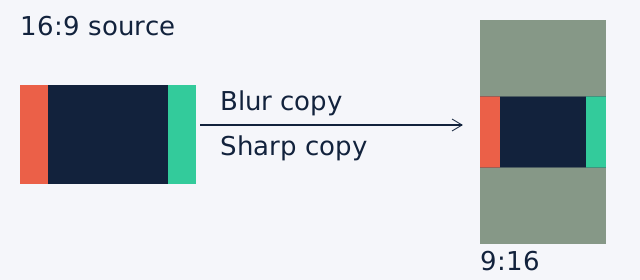
The export helper splits the source into two video branches. It enlarges the background while preserving aspect ratio, crops it to the canvas, blurs it, then changes brightness and saturation. A separate foreground branch is fitted proportionally and overlaid at the chosen position.
Background zoom changes the enlarged backdrop, not the sharp foreground. Increasing foreground scale above 100% can push the picture beyond the canvas and lose edges. Keep it at or below 100% when the requirement is truly no foreground cropping. A busy or high-contrast background can compete with subtitles even after blur; darken it or choose solid padding.
Measured input and exported frame
The test starts with a 320 by 180 graphic: red at the left edge, green at the right and a white central marker. Tubelexity encodes it as a one-second H.264 video, then processes it through the actual blur helper to a 288 by 512 MP4. The extracted output frame below is from that encoded file, not a CSS mockup.
Settings are foreground scale 100%, both positions 50%, blur 12, brightness -0.20, saturation 0.8, background zoom 1.1 and CRF 24. The source is silent. Browser metadata verifies the output dimensions, and decoded center-row pixel checks verify that both colored foreground edges survive. At this test size the ideal foreground is 288 by 162 pixels.
These compact dimensions make the test reproducible; they are not recommended delivery resolution. Choose dimensions appropriate to your original. Exporting small footage at 1080 by 1920 creates more output pixels, not more recorded detail. Re-encoding is lossy and the browser preview is only an approximation of the final filter.


Keep subjects visible throughout the clip
Position controls are static across the export. They do not detect faces, follow a moving speaker or switch composition between shots. A subject that moves can still collide with captions or interface overlays. Scrub at cuts and moments of movement, not just the first frame.
For a shot needing a moving crop, edit separate sections with deliberate framing in your editor. If the whole composition matters, keep the contained foreground. For a single central subject with expendable sides, a conventional crop may be clearer on a phone. Use Canvas Expander for general padding choices or Shorts Converter for the broader vertical workflow.
Recommended workflow
- Load the original video in Blur Video Background and choose the 9:16 ratio. The preset uses a 1080 by 1920 canvas.
- Set Foreground scale to 100% to fit within the whole canvas. The default is 90%; a smaller value leaves more space around the picture.
- Start with Horizontal position and Vertical position at 50%. Scrub through the entire clip before moving the foreground.
- Leave Use solid background off. Adjust Blur, Background brightness, Background saturation and Background zoom to keep the backdrop unobtrusive.
- Keep Preserve audio enabled if wanted, choose MP4 or WebM and export. Reopen the downloaded video to verify framing and sound.
Frequently asked questions
Does blur remove the original background behind a person?
No. The whole original frame stays in front. A separate enlarged copy fills unused canvas space; there is no person segmentation.
Why do I still see bars?
Check whether the bars are already encoded inside the source picture. Fitting that source also preserves its baked-in bars. Removing them requires a deliberate crop first.
Can this track a moving subject?
No. Horizontal and vertical positions are fixed. Review every shot or edit sections separately.
Will the audio be preserved?
The tool can include the source audio when Preserve audio is enabled. Export may re-encode it, so compare the downloaded result rather than assuming bit-for-bit preservation.